Stepper
Members
-
Benutzer seit
-
Letzter Besuch
-
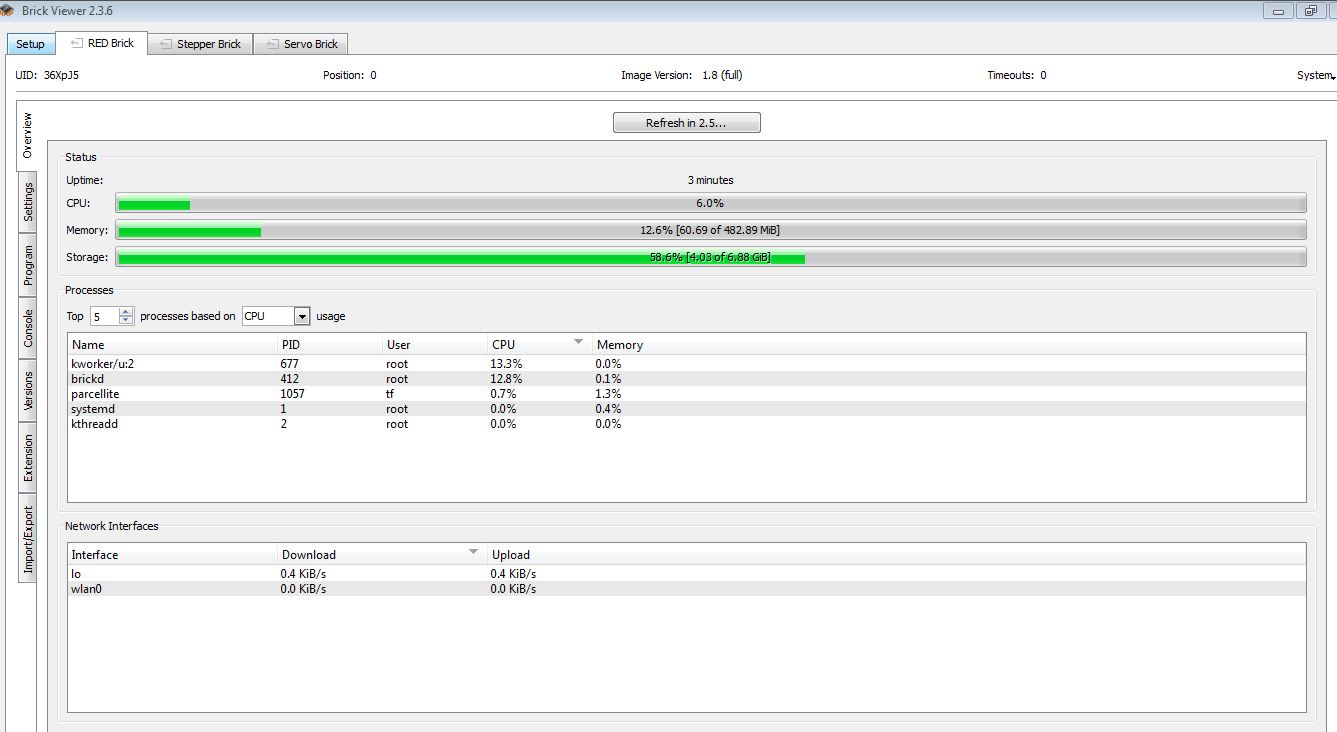
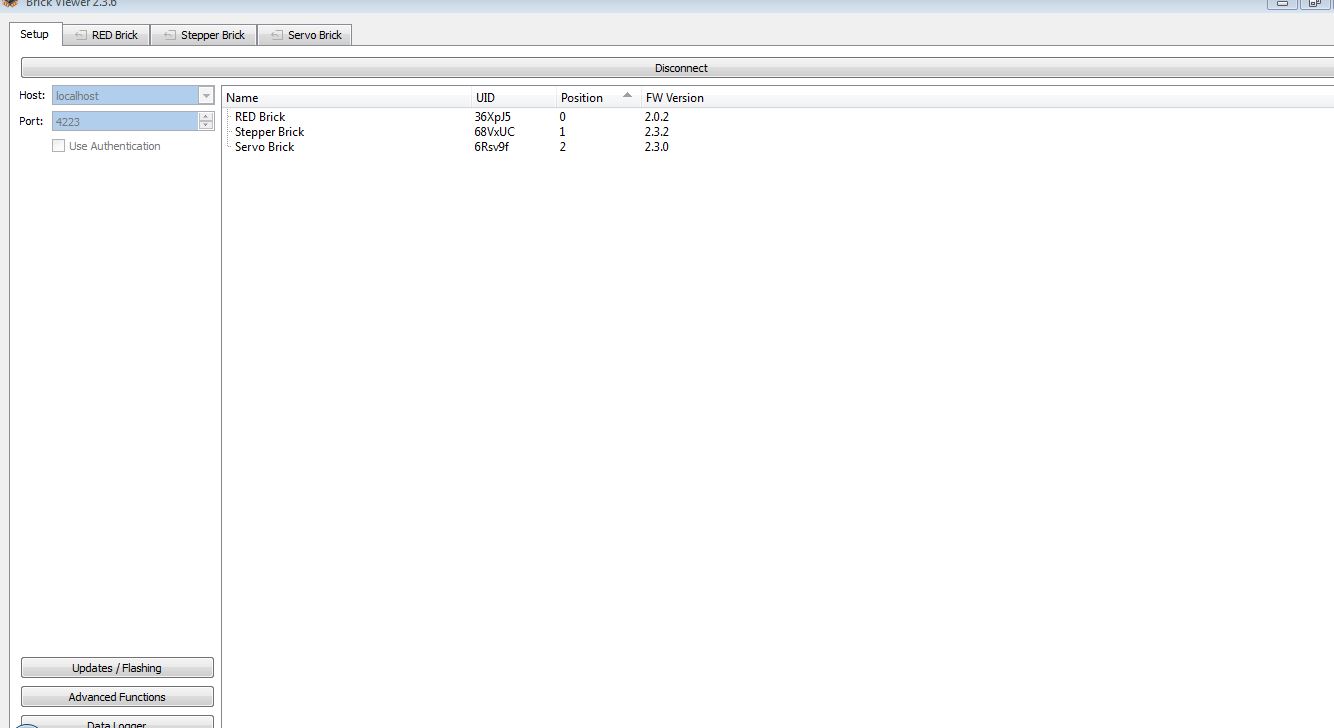
WLAN Verbindung wird unregelmäßig immer wieder unterbrochen. Festgestellt beim Brick Viewer. WLAN Signal ist hervorragend. LED am Red Brick blinkt grün.
-
Ich habe den RED Brick mit einer Mini SD und WLAN Stick von Tinkerforge ausgerüstet, ein kabellose Verbindung vom PC zum RED Brick kommt aber nicht zustande. Kann mir jemand Schritt für Schritt erklären, welche Einstellungen ich im Brickviewer vornehmen muss z.B. im Tab Network, Accsess Point BrickDaemon etc.
-
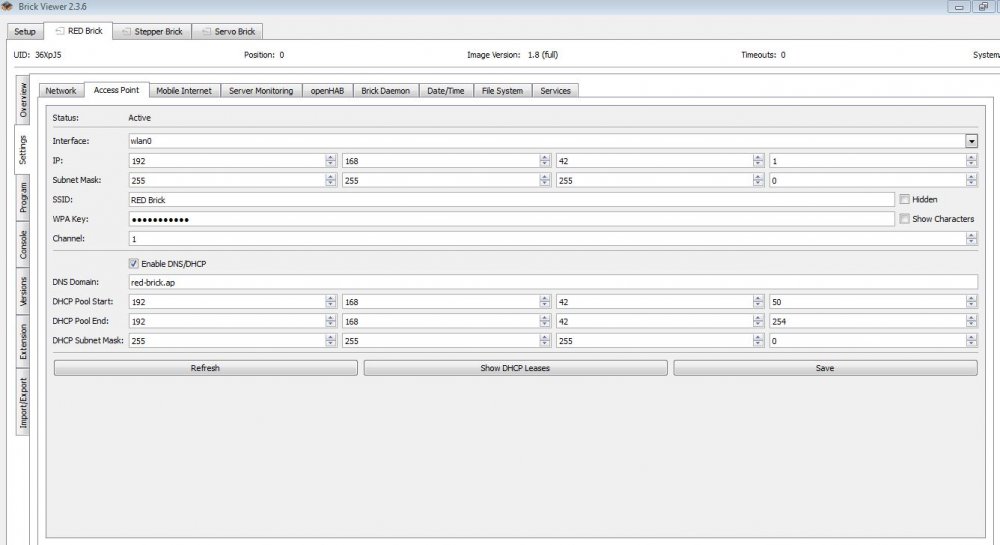
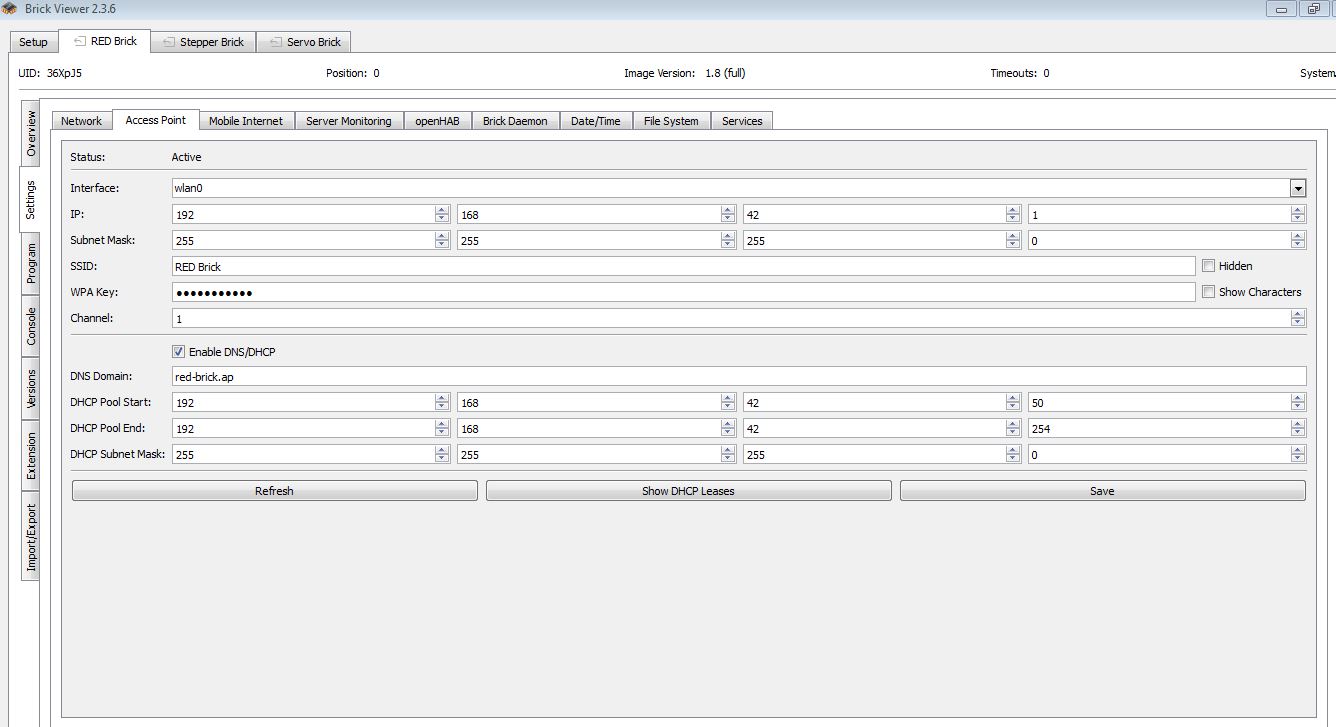
Hallo ich habe ein Problem, der RED Brick lässt sich nicht mit dem Wlan verbinden. Vorgehendweise: 1. SD-Karte eingesetzt 2. WLAN-Stick im RED-Brick eingesteckt 3. Laptop über USB-Kabel mit RED-Brick verbunden 4. Brick-Dämon gestartet 5. Brick-Viewer gestartet, RED-Brick Connected 6. Reiter Access-Point, IP Adresse wird angezeigt siehe Bild Im WLAN-Monitor des Laptops erscheint RED-Brick als nicht verbunden. Beim Verbinden gebe ich WLAN-Schlüssel meiner Netzwerks an. Ergebnis: RED-Brick kann nicht verbunden werde, Schlüssel stimmt nicht überein. Wo begehe ich den Fehler?