Mathias64
Members
-
Benutzer seit
-
Letzter Besuch
-
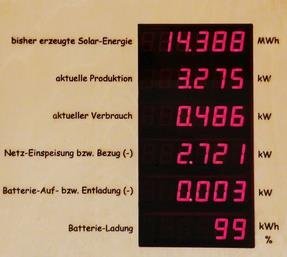
Hallo Thomas So ungefähr habe ich mir das vorgestellt LG Mathias
-
Hallo Habe im Netz gesehen das es eine Anzeige gibt wo man die Daten vom Wechselrichter sich anzeigen lassen kann auf eine LED Anzeige . Die Daten werden per Wlan zur Anzeige gesendet . Besteht evtl. interesse so ein Projekt mit umzusetzen . LG Mathias
-
Hallo Bastian Ja meine Wallbox erkennt mein Wlan .
-
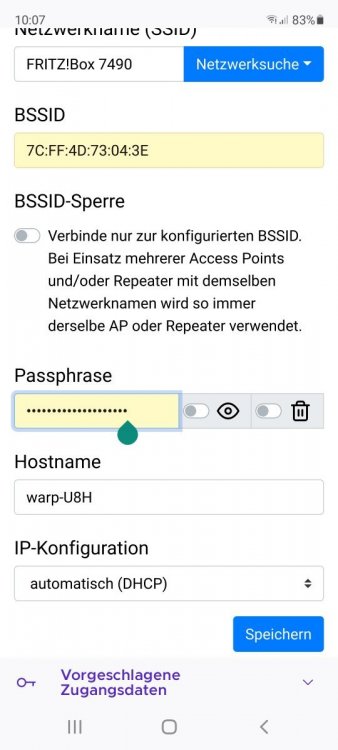
Hallo Ich hab mal eine Frage wegen der Wlan Verbindung . Habe ich nur eine Wlan Verbindung wenn ich das Auto lade . Ich kann mit meinen Handy mich einloggen steht geschrieben unter Einstellungen Wlan -Verbindung Getrennt (in rot) Wlan- Access-Point Aktiviert .( in grün) Unter Wlan einstellungen habe ich Wlan-Verbindung aktiviert angeklickt Netzwerkname ausgewählt BSSID ist ausgefüllt BSSID. Sperre ist deaktiviert Passphrase habe ich mein Netzwerkschlüssel eingetragen Bekomm mein E Auto erst nächstes Jahr . :-( Habe ich etwas übersehn . LG Mathias