



Jump to content
View in the app

A better way to browse. Learn more.

Tinkerunity

A full-screen app on your home screen with push notifications, badges and more.

To install this app on iOS and iPadOS
  1. Tap the Share icon in Safari
  2. Scroll the menu and tap Add to Home Screen.
  3. Tap Add in the top-right corner.
To install this app on Android
  1. Tap the 3-dot menu (⋮) in the top-right corner of the browser.
  2. Tap Add to Home screen or Install app.
  3. Confirm by tapping Install.

laoonatic

Members
  • Benutzer seit

  • Letzter Besuch

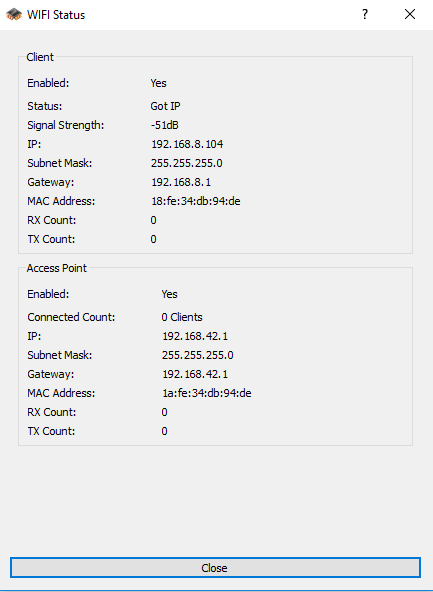
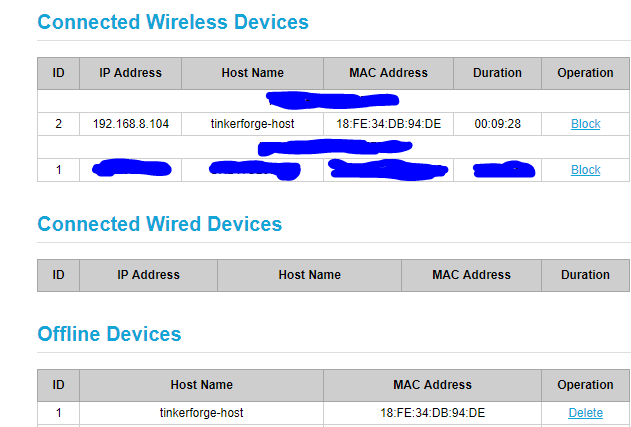
  1. Hello! I have a problem with accessing my device on the network in both "Client" and "Client and Access Point" mode. I introduced the SSID and the password correctly in the Brick Viewer and when I check "Show status" I see that my device obtained an IP. However, it doesn't transmit anything on the network. I attached a screenshot with the status of the device. I logged into my router to see what may be the cause and through the Security settings I can see the "Connected Wireless Devices" and I can see my Tinkerforge module there. However, there is another category called "Offline devices" and the module also appears under that category. I attached a photo of this for reference. Does anybody know what might be the cause? Thank you.
Configure browser push notifications

Chrome (Android)
  1. Tap the lock icon next to the address bar.
  2. Tap Permissions → Notifications.
  3. Adjust your preference.
Chrome (Desktop)
  1. Click the padlock icon in the address bar.
  2. Select Site settings.
  3. Find Notifications and adjust your preference.