deepflash
Members
-
Benutzer seit
-
Letzter Besuch
-
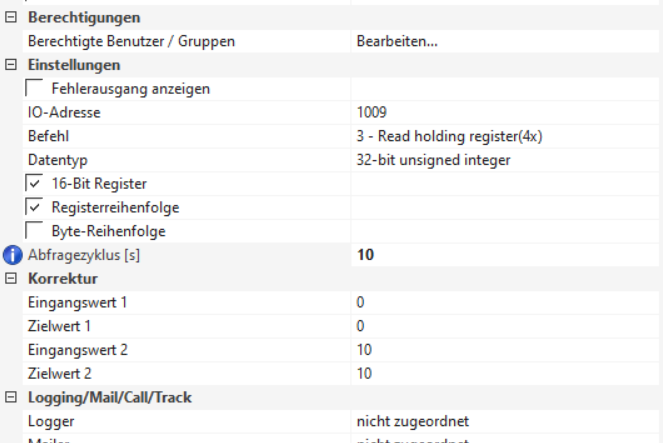
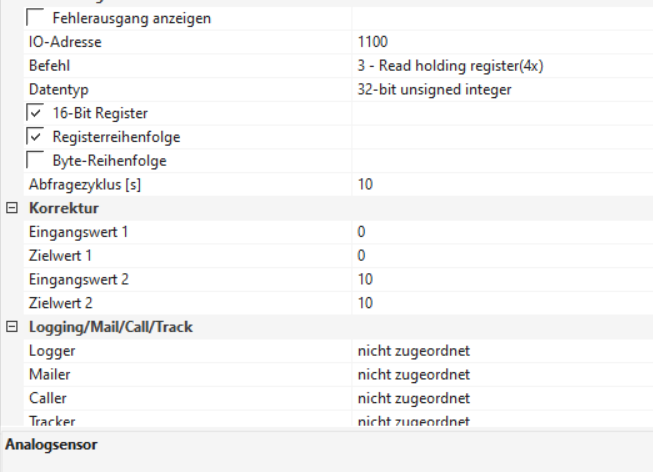
Das werde ich doch direkt mal testen.. diese Modbus Simulation hört sich sehr interessant an für mein Loxone Smart Home u. meinen Varta Speicher, die beide die Keba Box unterstützen. Update 1: im Varta Speicher hat sich die Wallbox direkt verbunden :-))))) Da habe ich festgestellt, dass es auf der anderen Seite schön wäre, wenn man auf der Web-UI von der Wallbox alle verbundenen Modbus-Geräte angezeigt bekommen könnte. Wäre das möglich? Update 2: Das Einbinden in Loxone klappt noch nicht so ganz. Habe von hier das Config-Example genommen und daraus eine Vorlage generiert und import. https://loxwiki.atlassian.net/wiki/spaces/LOX/pages/1590002780/KEBA Allerdings kommen keine Werte an. Was müsste denn hier in den Einstellungen vom max. Ladestrom zum Beispiel konfiguriert werden, damit das von der Warp 2 Pro als Keba konfiguriert kommen müsste? Update 3: I used the pdf provided by Keba: https://www.keba.com/download/x/dea7ae6b84/kecontactp30modbustcp_pgen.pdf I set up: and it works :)
-
deepflash ist der Community beigetreten
-
Hallo zusammen, ich bin stark interessiert am Warp2 Pro und bin auf der Suche nach jemandem, der die Wallbox schon in sein Loxone SmartHome integriert hat? Nachdem auch ein RPi zur Verfügung steht, könnte ich das Energiemanagement natürlich auch per EVCC aufsetzen, aber wenigstens eine Visualisierung in Loxone wäre toll und sollte mittels HTTP-Schnittstelle machbar sein.