



Jump to content
View in the app

A better way to browse. Learn more.

Tinkerunity

A full-screen app on your home screen with push notifications, badges and more.

To install this app on iOS and iPadOS
  1. Tap the Share icon in Safari
  2. Scroll the menu and tap Add to Home Screen.
  3. Tap Add in the top-right corner.
To install this app on Android
  1. Tap the 3-dot menu (⋮) in the top-right corner of the browser.
  2. Tap Add to Home screen or Install app.
  3. Confirm by tapping Install.

eric

Members
  • Benutzer seit

  • Letzter Besuch

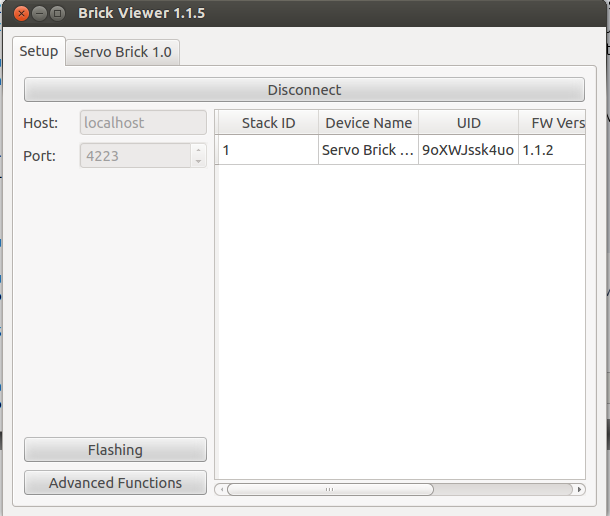
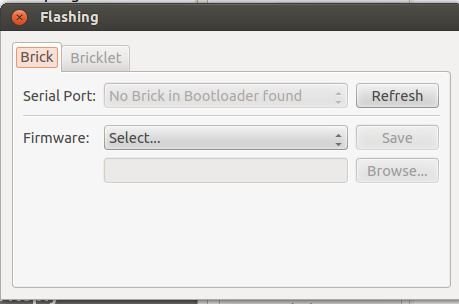
  1. Hello all, I'm having a number of problems with the servo brick currently. Whenever it's plugged into a stack, all the lights in the entire stack go off. Whenever it's plugged into a stack of bricks, my computer doesn't see it. However, when my computer is plugged directly into the brick it sees it without trouble. I've tried to flash the brick, but despite being able to see/use/control the servo brick via brickv, brickv is unable to see the brick in the flashing menu. Any ideas? Cheers.
Configure browser push notifications

Chrome (Android)
  1. Tap the lock icon next to the address bar.
  2. Tap Permissions → Notifications.
  3. Adjust your preference.
Chrome (Desktop)
  1. Click the padlock icon in the address bar.
  2. Select Site settings.
  3. Find Notifications and adjust your preference.