



Hawell
Members
-
Benutzer seit
-
Letzter Besuch
Alle erstellten Inhalte von Hawell
-
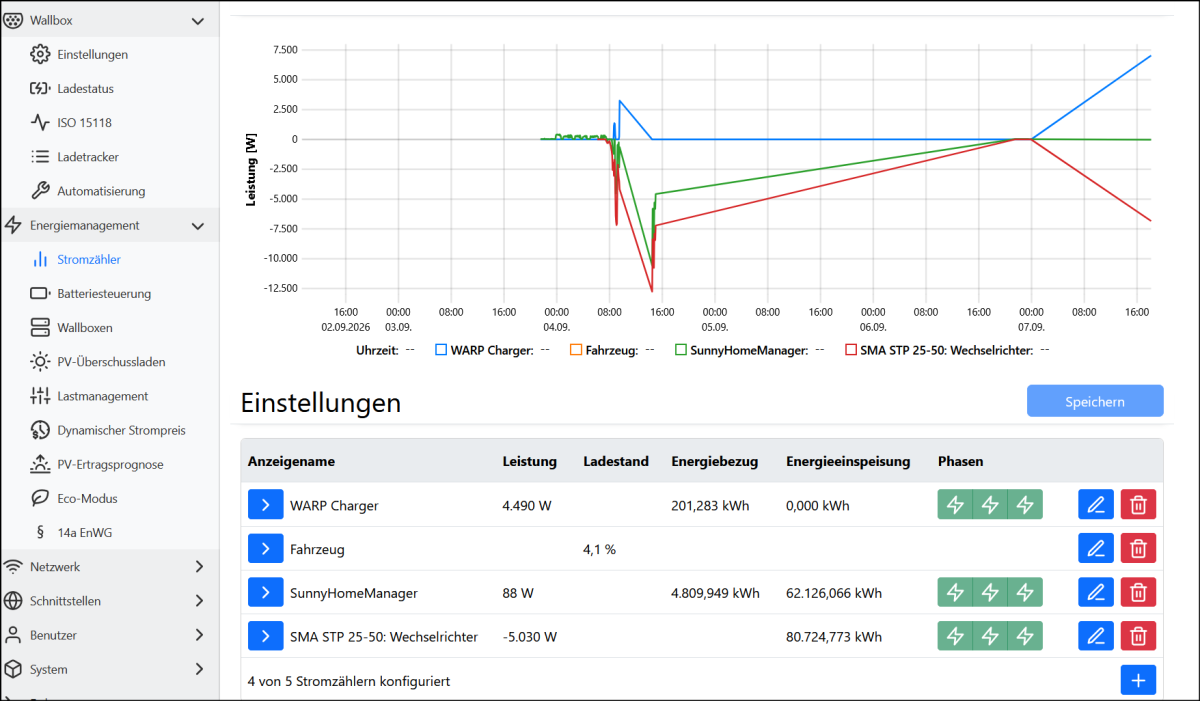
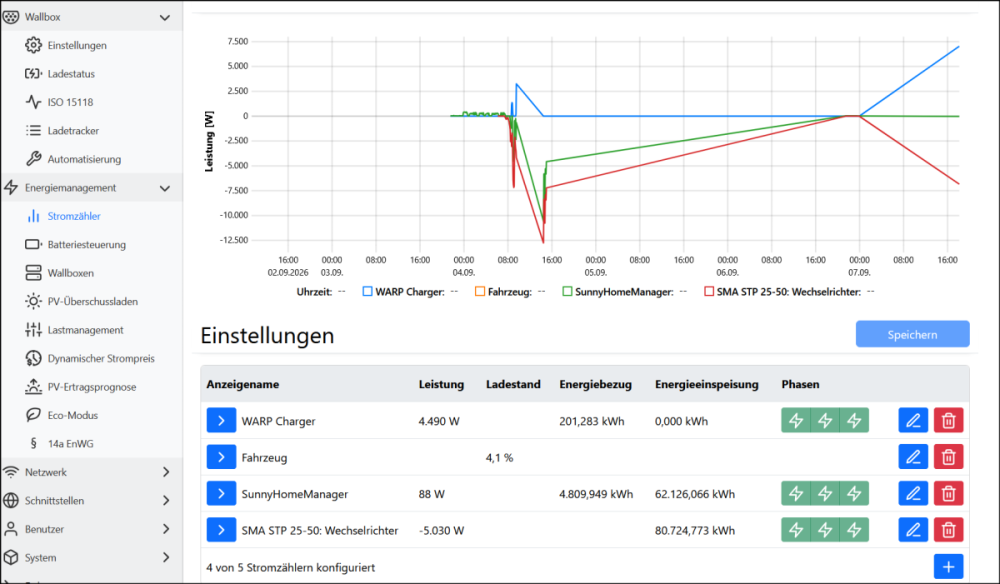
hi, die Firmware habe ich getestet und läuft bis jetzt auch in dem Punkt gut. - DANKE ! was noch fehlt ist der Ladezustand in dem Verlaufsdieagram unter Zähler was mit aber auch aufgefallen ist (wenn es auch nicht ganz zum Thema passt) das Fahrzeug ist angesteckt und geladen hat, der Ladevorgang pausiert nun weil nicht genut PV Leistung ansteht - wie bekomme ich den Vorgang dann gestartet damit er über NormalNetz läd? Wenn ich von PV auf Schnell wechsel, dann muss ich das Kabel kurz trennen und neu anstecken - ist das normal?
-
kein Thema, wenn du noch was brauchst - einfach melden. in einigen Fällen klappt auch die SoC Abfrage, aber von was da abhängig ist konnte ich noch nicht herausfinden.
-
der letzte Ladevorgang hatte den SoC nciht angezeigt. oder brauchst du das Ladeprotokoll? warp4-873j-Debug-Report-2026-08-26T19-57-28-436.txt
-
Hallo, also das Update klappt. Aber was nicht bzw nicht zuverlässig klappt ist das auslesen des SOC beim Start des Ladens. meist liest er es nicht.
-
HI, das Fahrzeug läd nun mit der neuen Firmware und aktivem Autocharge und SoC auslesen - DANKE damit klappt auch die Ladefreigabe nur über das Fahrzeug (Ohne NFC) - bei den letzten Testes meldete aber die Fahrzeug-App, einen Ladeabbruch, was aber in der Realität nicht so ist. teste das aber aber die Tage nochmal genauer. Gruß Rico.
-
box resetet, Auto abgeschlossen, log aktiviert, kabel angestekt. 3 minuten laufen lassen. Auto Leuchtet weiß warp4-873j-Debug-Report-2026-08-11T17-23-36-630.txt warp4-873j-EVSE-Ladeprotokoll-2026-08-11T17-23-30-929.txt
-
am besten ich geh wieder ins Bett 😵💫 - sorry. warp4-873j-EVSE-Ladeprotokoll-2026-08-11T16-16-17-894.txt warp4-873j-Debug-Report-2026-08-11T16-17-04-051.txt
-
ich hoffe das war so richtig. das Fahrzeug geht nach ein paar Sekunden auf Rot und im Display steht Fehler im Ladesystem warp4-873j-EVSE-Ladeprotokoll-2026-08-11T13-01-45-042.txt warp4-873j-Debug-Report-2026-08-11T13-02-52-536.txt
-
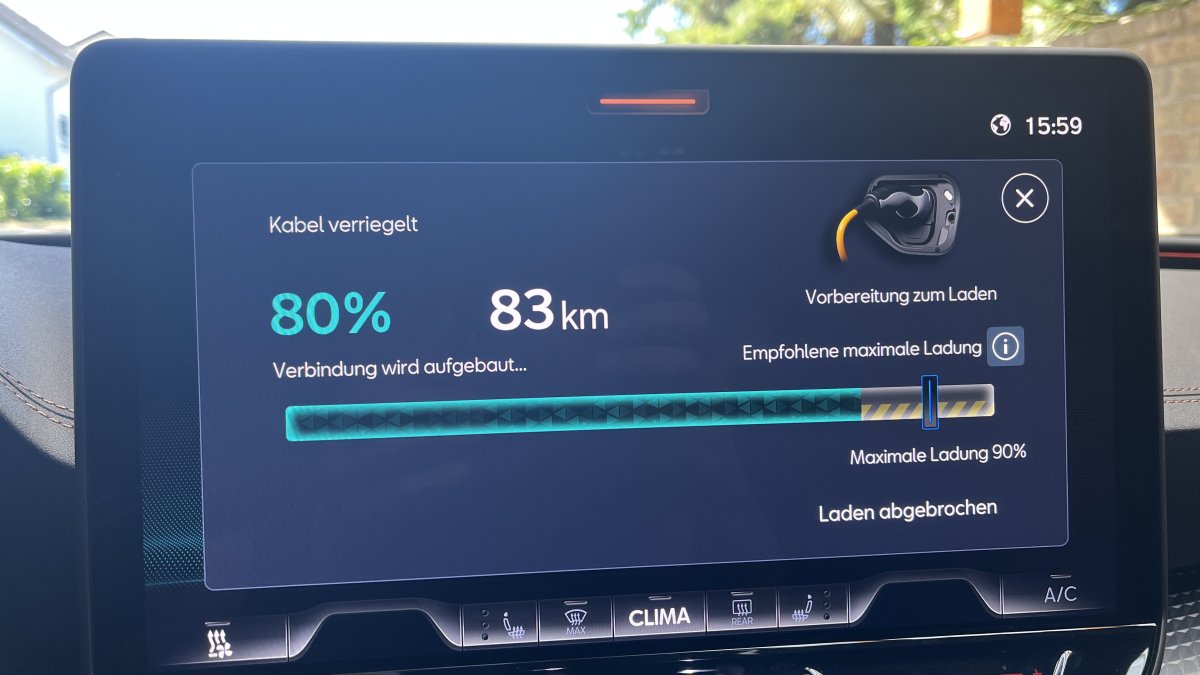
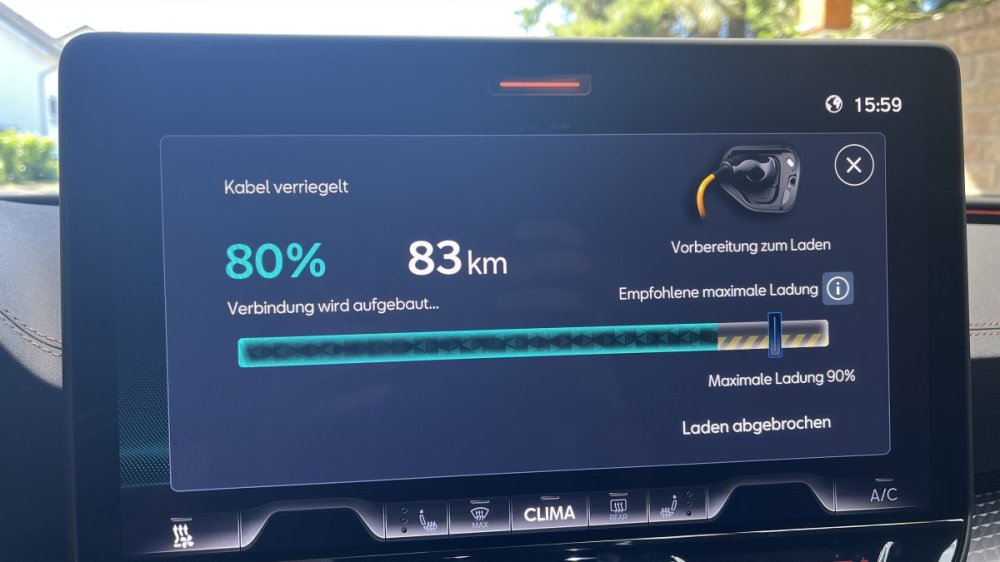
ich Dappes, hab vergesen zu sagen, dass ich in dem Protokoll die ersten 2 Minuten beide Hacken aktiv hatten und dann im Wechsel nur einen. Zum Schluss hatte ich alle aus, wo dann das Fahrzeug auch läd. die Wallbox bekommt auch die MAC Adresse und den SoC vom auto, aber dann passiert nciht mehr, wenn die Box ein zweites mal "klackt" soll ich ein Protokoll machen, wo beide Hacken aktiv sind, und das Fahrzeug dann nicht läd? anbei das Bild im Fahrzeug nach ca 5 Minuten warten
-
Hallo, ich habe meine WARP4 kürzlich in Betrieb genommen, habe folgendes Probem: die Wallbox läd das Fahrzeug nicht, wenn ich unter dem Punkt ISO 15118 einen der Punkte Autocharge oder Ladestand auslesen aktiviere. Sobald ich beide deaktiviere läd das Fahrzeug. Zum Fahrzeug, es handelt sich um einen neuen Cupra eHybrit 2026. Was mache ich Falsch. Gruß Rico warp4-873j-EVSE-Ladeprotokoll-2026-08-11T13-01-45-042.txt warp4-873j-Debug-Report-2026-08-11T13-02-52-536.txt