



k8n
Members
-
Benutzer seit
-
Letzter Besuch
Alle erstellten Inhalte von k8n
-
Eine Sache die mich aktuell noch stört. der maximale Ladestrom (warp4_XXXX_globalcurrent) hat ja als valide Werte entweder 0 oder zwischen 6-32. Wenn ich weniger als 6A auswähle (also 1-5 A), dann spinnt das ganze und springt dann auf komische Werte Wäre es hier nicht sinnvoller das Ganze in zwei controls zu splitten? Also einmal Number mit min=6 und max=32 Und einmal einen switch der Laden erlaubt/verbietet (also der das auf 0 stellt bzw auf den Wert der number) Damit hätte ich dann nicht mehr einen "Verbotenen" Bereich...
-
Ist gefixed in 2.13.3, danke!
-
"Displaybeleuchtung des Stromzählers", trotz explizitem setzen auf "Aus" und anschließendem "Speichern" wird diese Option nach einem Reboot immer auf "Automatisch" zurückgesetzt.
-
Sieht soweit gut aus! Eine Frage noch, bevor ich das wieder selber ranfrickele.. Gibt es Pläne den Selector für ein/dreiphasiges Laden auch per discovery verfügbar zu machen? Aktuell hab ich das so halbwegs mit einem eigenen selector aber wäre schon schöner wenn es das schon "automatisch" hätte : - select: command_template: "{% if value == 'Einphasig' %}\n {\"phases_wanted\": 1}\n{%\ \ elif value == 'Dreiphasig' %}\n {\"phases_wanted\": 3}\n{% else %}\n {\"\ phases_wanted\": 0}\n{% endif %}" command_topic: warp4/877a/power_manager/external_control_update device: XXXXXXXXXXX entity_category: config name: phases_control options: - Einphasig - Dreiphasig - Nicht festgelegt qos: 0.0 state_topic: warp4/877a/power_manager/external_control unique_id: XXXXXXXXXXXXXX value_template: "{% set phases = value_json.phases_wanted if value_json is mapping\ \ and 'phases_wanted' in value_json else none %}\n{% if phases == 1 %}\n Einphasig\n\ {% elif phases == 3 %}\n Dreiphasig\n{% else %}\n Nicht festgelegt\n{% endif\ \ %}"
-
Bei den MQTT sensoren gibt es noch ein paar probleme. der Fahrzeug Ladestand ( hier sensor.warp4_877a_ev_soc ) wird anscheinend als text interpretiert was natürlich die Statistik enorm zumüllt. Soweit ich das sehe fehlt hier einfach die folgenden einträge in homeassistant/sensor/warp4-877a/ev_soc/config: "device_class":"battery", "unit_of_measurement":"%" dann funktioniert es auch..

-
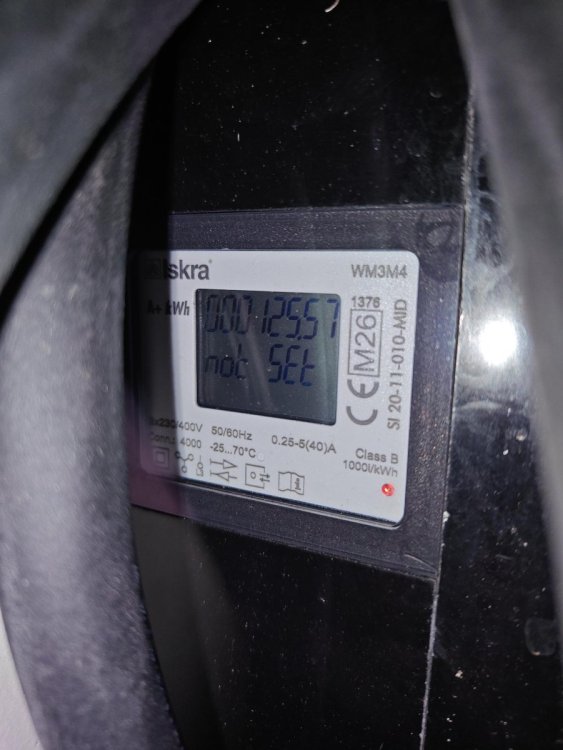
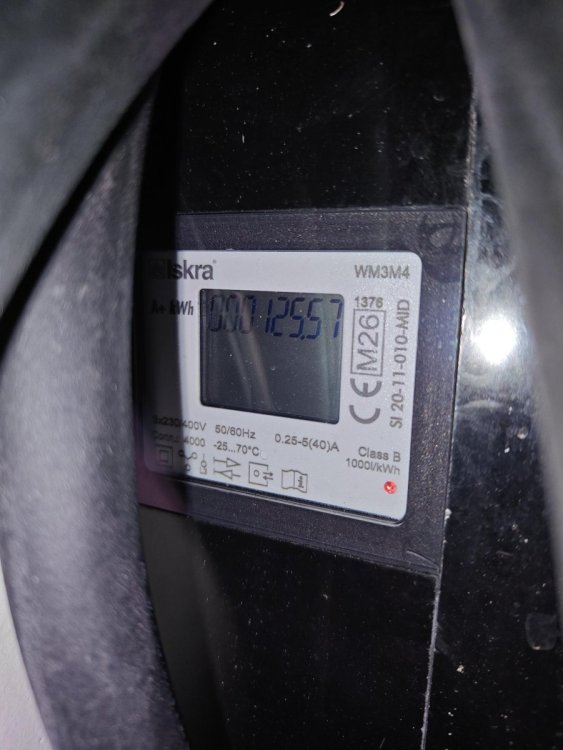
Die zwei Zustände hab ich...
-
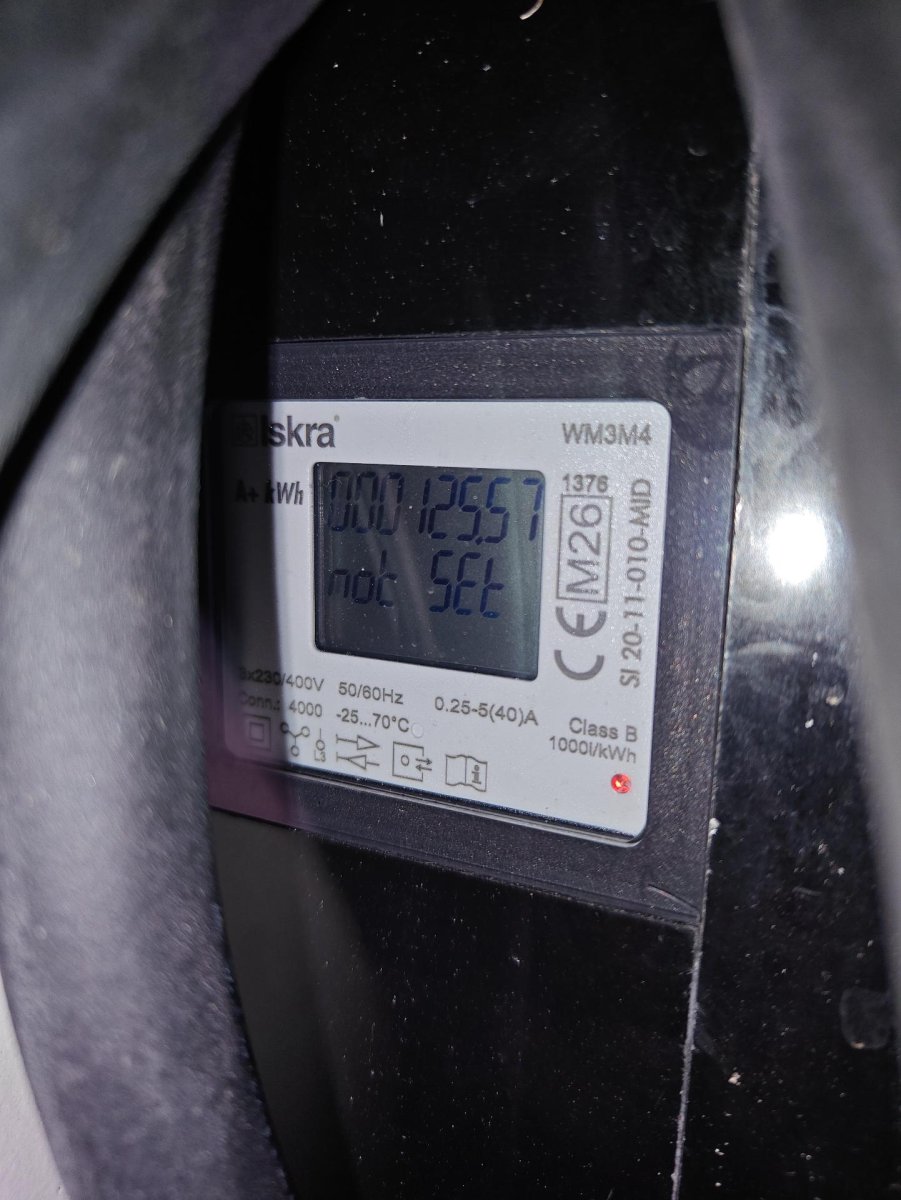
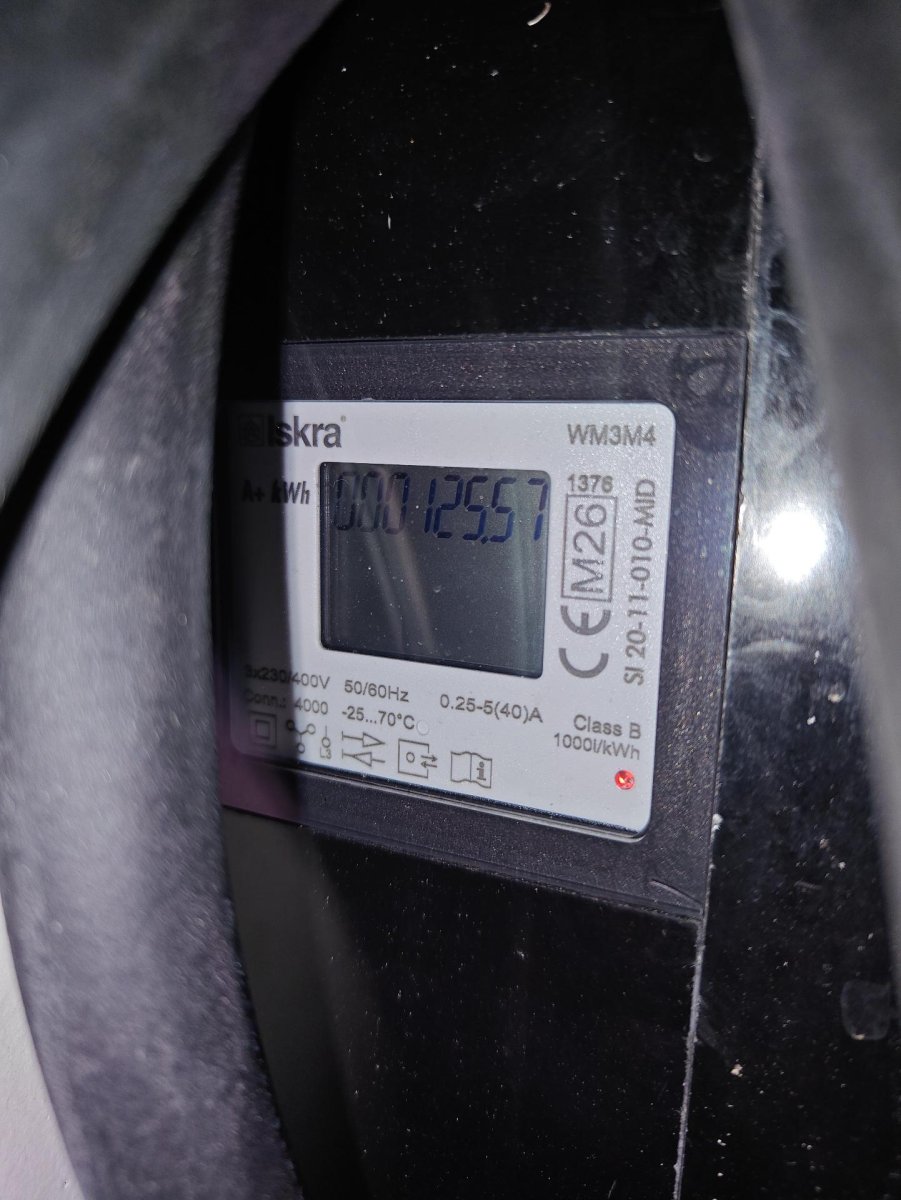
Ich glaube mit der vorherigen FW version hat das "not Set" mit irgendeiner Zahl abgewechselt? Jetzt ist es nur "not Set" oder eben nix, abwechselnd (in der zweiten Zeilte natürlich, der zählerstand bleibt ok).
-
Hatte schon mehrfach neugestartet... Macht keinen Unterschied...
-
Leider wird bei meiner WARP4-Pro am Stromzähler selbst mit v2.13.0 immer noch "not Set" angezeigt. 0,015 | | **** TINKERFORGE WARP4 CHARGER V2.13.0+6AA2B21E **** 0,016 | | Last reset reason was: Software reset via esp_restart (3) 0,642 | fs | Mounted data partition: 151552 of 3538944 bytes (4.3 %) used 1,138 | api | WARP4 Charger config version: 2.12.0 (warp) 1,197 | factory_data | Using factory SKU: WARP4-CP-PC-2275-C 1,198 | esp32_eth_brick | WARP ESP32 Ethernet Brick V2 UID: 877a 1,800 | ntp | Set timezone to Europe/Berlin 2,119 | wifi | Connecting to WiFi 2,489 | firmware_update | Running firmware is signed by: Tinkerforge GmbH 2,491 | firmware_update | Partitions: app0 (valid, 2.12.2+6a4f91cd), app1 (valid, running, 2.13.0+6aa2b21e) 2,886 | meters | Meter 1: Meter declared 3 values 2,979 | meters | Meter 3: Meter declared 1 value 3,047 | meters | Meter 4: Meter declared 2 values 3,201 | charge_tracker | Checking charge records 3,631 | users | Web interface authentication enabled. 2026-09-10 20:21:22,001 | rtc | System time set from RTC at 4,892 2026-09-10 20:21:22,055 | web_server | Loaded PEM certificate for warp4-877a.local 2026-09-10 20:21:22,058 | web_server | Loaded ECDSA private key (secp256r1) 2026-09-10 20:21:22,159 | web_server | Loaded PEM certificate for WARP_EEBUS 2026-09-10 20:21:22,162 | web_server | Loaded ECDSA private key (secp256r1) 2026-09-10 20:21:22,240 | wifi | Connected to WiFi: b+g+n ch.1 HT20 [DE ] -80dBm, BSSID 2E:91:AB:XX:XX:XX 2026-09-10 20:21:22,339 | power_manager | External phase switching API enabled, starting with 3p 2026-09-10 20:21:22,360 | web_server | Starting multi-port server with 3 ports 2026-09-10 20:21:22,369 | main | Initialization done 2026-09-10 20:21:22,418 | device_name | This is warp4-877a (warp4-877a), a WARP4 Charger Pro 22kW 2026-09-10 20:21:22,502 | meters | Meter 0: Meter declared 48 (45) values 2026-09-10 20:21:22,943 | ethernet | Started after 4023ms 2026-09-10 20:21:23,256 | wifi | Got IP address: 192.168.200.152/24, GW 192.168.200.1 2026-09-10 20:21:23,501 | network | Network connected (WiFi) 2026-09-10 20:21:23,506 | meters_legacy | Meter type 11 from Bricklet overrides auto-detected meter type 201. 2026-09-10 20:21:24,306 | mqtt | Connected to broker at mqtts://homeassistant.lan:8883. 2026-09-10 20:21:53,902 | ntp | NTP synchronized at 36,402
-
Hallo, laut https://docs.warp-charger.com/de/docs/smart_home/home_assistant/ sollten unter anderem auch die folgenden elemente durch auto-discovery erscheinen: Aktiver Lademodus als select (ich habe PV überschusssteuerung aktiviert) Fronttaster gedrückt als binary sensor Leider sind diese beiden nicht sichtbar. Wenn ich mit MQTT Explorer schaue sehe ich diese auch nicht unter dem /homeassistant/ topic. In der UI ist "Home Assistant" für den Discovery-Modus ausgewählt. Das Ganze ist auf einem WARP4 charger mit der neuesten Firmware 2.12.2
-
Super, danke! Hatte ich total übersehen.
-
Hallo, Gibt es eine Möglichkeit die Weboberfläche der WARP4 mit einem Passwortschutz zu versehen? Aktuell kann ja jeder der im selben WLAN ist auf die Steuerung zugreifen. (Basic Auth würde ja schon genügen, als optionale Einstellung) MfG, Daniel Kenzelmann